How do I see delivery and customer notes?
EasyRoutes Delivery Driver displays important customer or delivery notes so you can perform your deliveries correctly.
Instructions
EasyRoutes will let you know if more than one order is at the same location. This is visible above your map when viewing a stop:

Customer notes, order notes, stop notes, and any stop instructions imposed by your EasyRoutes settings can be found in below the navigation button when viewing individual stops:

Notes included by a delivery driver as Proof of Delivery will be listed under the Proof of Delivery section further down the page:

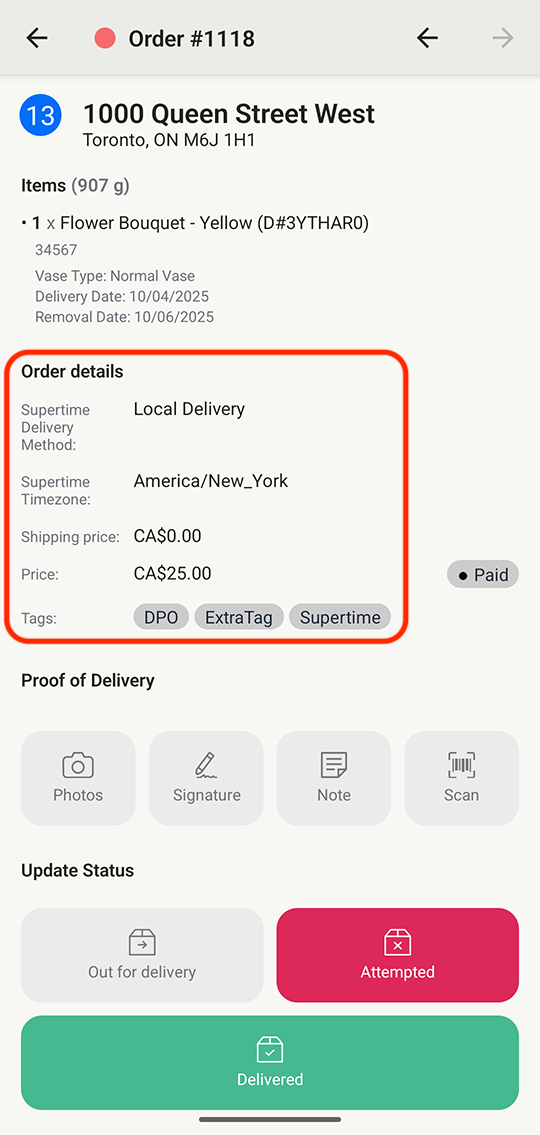
If important delivery notes are stored as tags or attributes on your orders, these can be configured to display on any Route pages and within the mobile app for each stop. To view Order tags and Attributes inline for your orders, from your EasyRoutes Settings > Routes tab, ensure these two checkboxes are enabled from the Route display options section:

Once enabled, Order tags and Attributes will display immediately below any customer/item information for each stop within the mobile app: